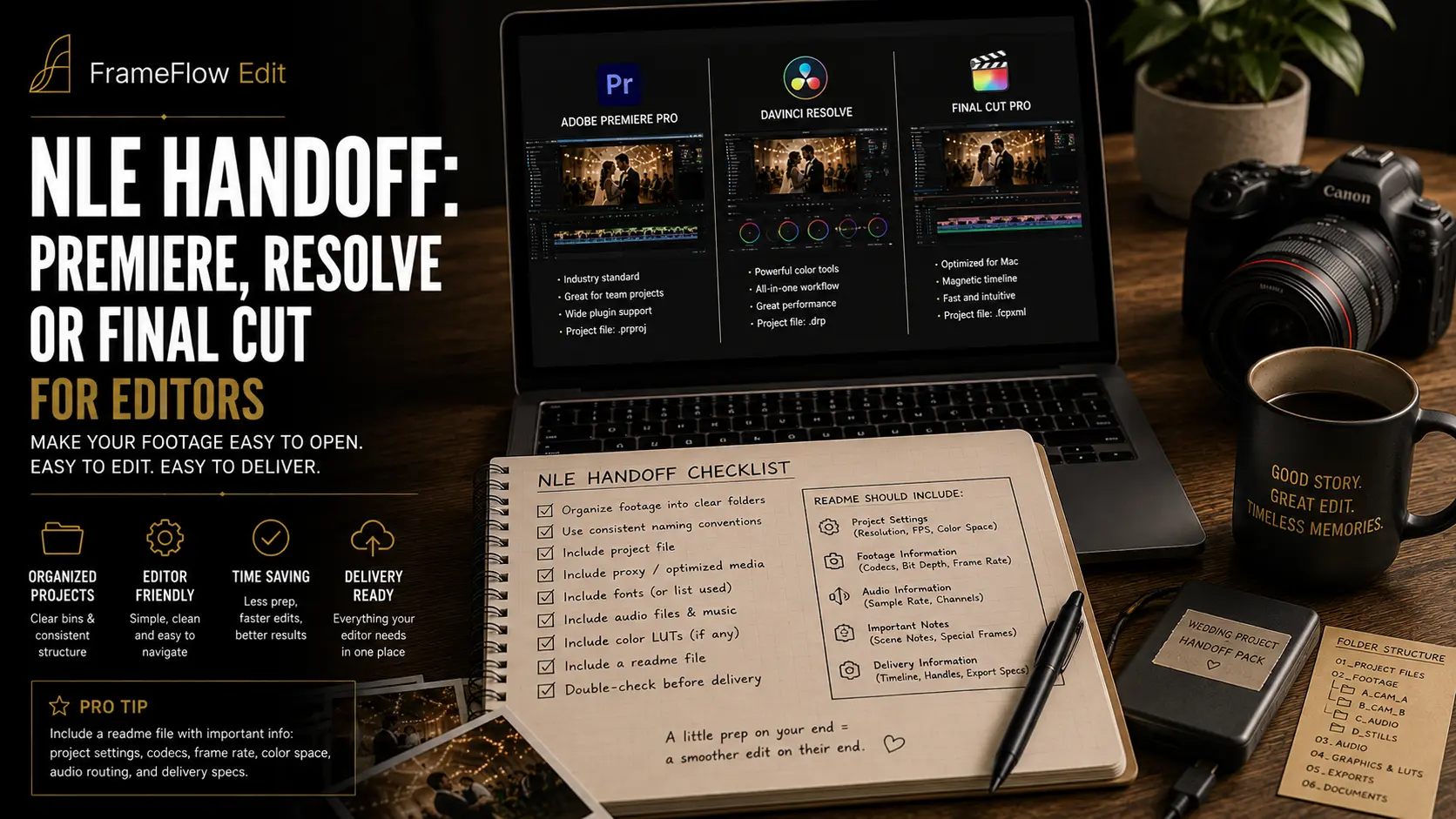
Most wedding videographers pick an editing app once, early, for reasons that have nothing to do with collaboration — a tutorial they liked, a laptop they owned, a colourist friend who swore by one panel. That choice stays invisible until the first time you hand a wedding to someone else. Then it becomes the single most expensive decision in your post-production stack, because the moment a timeline has to leave your machine, your NLE stops being a creative tool and starts being a file format.
This guide is about that moment. Not "which NLE is best" — a question with no answer — but the practical one: what survives the trip between Adobe Premiere, DaVinci Resolve and Final Cut Pro, what quietly dies on the way, and how to package a wedding so the editor on the other end starts cutting instead of emailing you about missing media.
The NLE question is really a handoff question
When you edit everything yourself, interchange never comes up. Your project file, your media, your LUTs and your scratch disks all live in one place, and the app resolves the links because nothing ever moved. Outsourcing breaks all four assumptions at once.
The failure is rarely dramatic. It looks like this: the editor opens your timeline, sees the cut structure, and every single clip is offline. Or the cut opens fine but the speed ramps are gone. Or the ceremony audio is there but the mix you spent an evening balancing has reverted to raw levels. None of that is a bug. It is the interchange format doing exactly what it was designed to do — carry a subset — and the subset being smaller than you assumed.
So the real question is not "Premiere or Resolve". It is: what is the smallest, most reliable package I can send that lets a stranger rebuild my intent? Sometimes the answer is a project file. Often it is not a project file at all — it is raw media plus a written brief, which is why our guide to handing off wedding footage to an editor spends more time on folder structure than on software.
Front-load this: for a typical wedding sent to a white-label editor, you should be shipping organised media and a brief, not a half-cut timeline. Timeline interchange matters when you have already done selects, a multicam sync, or a rough assembly you do not want to redo. That is a narrower case than most people assume, and it is where the rest of this article lives.
It helps to understand what an interchange file physically is. Every interchange format is a description of a timeline, not the timeline itself. It says "at 00:04:12, use two seconds of the file called A001_0312.MOV, starting at its timecode 01:22:04". The picture only reappears because the receiving app finds that file on disk and reads it.
That single sentence explains almost every handoff problem. If the file is not there, or has been renamed, or was transcoded to a different frame rate, or lives on a drive with a different letter — the description still parses perfectly and shows you an empty timeline.
What generally survives an interchange file:
What generally does not survive:
Treat the list above as a design constraint rather than a disappointment. A timeline you intend to send should be built plainly: cuts on the timeline, effects left off, grade left for the grade stage, mix left for the mix stage. A pretty rough cut is a fragile rough cut.
The interchange formats, ranked by what they preserve
There are five formats you will realistically encounter, plus each app's native project file. They differ enormously in how much they carry, and the richest is not always the right choice — a format that carries more also breaks in more interesting ways.
OpenTimelineIO deserves a note because it is the one format actively designed for this problem. It is an open source timeline interchange format from the Academy Software Foundation. DaVinci Resolve supports it natively — Blackmagic documented import and export of OTIO timelines as new in the 18.5 release, in both the free and Studio editions — and Adobe Premiere added OTIO import and export in its version 26 line, under File > Export > OpenTimelineIO. The plain .otio file carries only the timeline description; the .otioz bundle is the packaged variant. That makes OTIO a real common language between Premiere and Resolve. Final Cut Pro is the gap: it does not read or write OTIO, so Mac-native handoffs still run on FCPXML.
Premiere, Resolve and Final Cut Pro in 2026
All three apps had significant releases in the first half of 2026, and all three now ship AI-assisted tooling that touches the parts of a wedding edit you would otherwise outsource — masking, search, colour matching, captions. That matters less for interchange than the marketing suggests, but it does change what a "rough cut" contains by the time it leaves you.
Three practical consequences fall out of that table.
Resolve is the universal receiver. It reads every common interchange dialect, including FCPXML, which the other two do not both manage. If you are choosing a hub for a mixed-app relationship, Resolve is the one that can sit in the middle. Its free edition is not a crippled demo either — the Studio licence buys AI tooling, some collaboration features and higher-end delivery, not the ability to open a timeline.
Premiere and Final Cut do not speak to each other directly. Adobe's migration documentation does not describe a direct import of the .fcpxml files Final Cut writes; it routes users through a third-party converter — XtoCC from Intelligent Assistance — instead. Premiere still reads the older Final Cut Pro 7 XML dialect, which is why that ancient format refuses to die. The same wall stands in the other direction: Final Cut imports FCPXML only, so a Premiere XML needs a converter such as 7toX before Final Cut will look at it.
Final Cut's FCPXML is versioned, and version matters. Final Cut Pro 12.0 updated the dialect to FCPXML 1.14. Since FCPXML 1.10, Final Cut exports as a bundle with the .fcpxmld extension rather than a single file — a folder that some receiving apps and some file-transfer tools will treat as a directory and mangle. Zip the bundle before you send it. A receiving app will usually accept an older FCPXML version but will refuse one that claims to be newer than it understands, so if your editor is a version behind, export a lower dialect — Final Cut's export dialog offers the current version and the two before it, which is your entire margin for error.
Which app to standardise on when you outsource
The honest answer for most wedding videographers who outsource: it does not matter what you cut in, as long as you never rely on the project file to communicate. Media plus a written brief is app-agnostic and cannot break. Everything below is about the cases where you do want the timeline to travel.
Notice how often the right answer in that table is "send media, not a project". That is not a cop-out. A wedding is one of the few genres where the editor's value is concentrated in decisions you cannot encode in a timeline anyway — which look from the vows lands, whether the first dance breathes or cuts, how long to hold on the mother of the bride. Handing over a rough cut sometimes helps and sometimes constrains; handing over well-organised media plus a clear description of the film you want almost always helps.
The exception is work that is mechanical and already done. Multicam sync, ceremony sync to a recorder, selects culled from six hours down to ninety minutes, a speech laid out in order — that is real labour with no creative ambiguity, and rebuilding it is pure waste. Package that, and only that, and leave the storytelling to the person you hired to do it.
Two things are worth saying plainly. First, switching NLEs to match an outsourcing partner is almost never worth it. The cost is measured in months of muscle memory, and the benefit is a handoff you perform a few dozen times a season and can solve with a converter or a clean export. Second, if you are choosing your first app and you already know you will outsource finishing, Resolve's interchange range and free tier make it the lowest-friction default — not because it edits better, but because it argues with fewer file formats.
How to export a timeline your editor can actually open
Whatever the format, the sequence of operations is the same: flatten the fragile parts, verify the frame rate, export the description, package the media, then test the result on a machine that is not yours. The per-app details differ.
Exporting from Adobe Premiere
Before exporting, duplicate your sequence and work on the copy. On the duplicate, remove effects you know will not translate, un-nest any nested sequences, and render nothing — renders do not travel. Then use File > Export and pick the dialect that suits the receiving app: AAF, EDL, Final Cut Pro XML, or OpenTimelineIO. Remember that Premiere's "Final Cut Pro XML" is the old XMEML dialect and not FCPXML — if the editor is on Resolve, OTIO is now the cleaner route.
For media, use Premiere's Project Manager. "Collect Files and Copy to New Location" gathers the media your sequence actually uses into one folder, which is the difference between shipping 60 GB and shipping 800 GB. Consolidate-and-transcode is available too, but transcoding at handoff time is a trap unless you and the editor have agreed on the codec — you are throwing away quality to solve a problem the editor may not have.
Exporting from DaVinci Resolve
Resolve gives you two fundamentally different exports and people confuse them constantly. Export Project Archive lives in the Project Manager — right-click the project rather than hunting the File menu — and creates a .dra package, technically a folder rather than a single file, containing the project, its database entries and the media. It is the only route that guarantees everything travels. Media Management, which is under the File menu, deliberately narrows the payload: you choose the whole project, selected timelines or selected clips, and it copies or trims only that.
For an outsourced grade or finish, Media Management with "timelines only" plus handles is usually right, because a wedding project accumulates media you imported and never used. For an archive or a full transfer of ownership, use the project archive. If the editor is not on Resolve, export a .drt timeline or an interchange file instead, and package media separately.
Exporting from Final Cut Pro
Final Cut's model is different because the library is the container. Select the library, event or project, then File > Export XML. Choose the FCPXML version deliberately: newest for a current Resolve, older if you know the receiving app is behind. Remember the export is a .fcpxmld bundle — compress it before it touches any transfer service.
For media, consolidate the library's media first so that referenced files become managed and travel with it, then copy the library. If the editor is on Premiere, accept in advance that you will need a converter step, and factor that into your turnaround promise.
Media, proxies and the relink problem
Interchange files fail on media far more often than they fail on structure. The receiving app hunts for a path that no longer exists, and every clip goes red.
Three rules prevent most of it. Keep original camera filenames — renaming clips after you have cut is the single most reliable way to break a relink. Keep a flat, predictable folder structure that mirrors what you sent, so the editor's manual relink only has to be performed once per folder. And send the codec you shot, not a transcode, unless you have agreed otherwise; a proxy-only handoff means the editor conforms back to originals they do not have.
Proxies deserve their own warning. A proxy workflow is a gift to a remote editor working over a domestic connection, but only if the proxies are frame-accurate to the originals and named identically. Generate proxies with the tool that will also conform them, agree a single resolution and codec, and never send a proxy set whose timecode does not match. A misaligned proxy set is worse than no proxies at all, because the cut looks correct until it is conformed.
If multicam is involved, sync before you export, not after. A synced multicam clip that survives interchange as a flattened track is still usable; an unsynced pile of angles arriving as separate tracks costs the editor an hour per wedding. The mechanics of getting that right are covered in our walkthrough on syncing multicam wedding footage before handoff.
Colour and audio: what interchange never carries properly
Two things reliably do not survive, and both are the parts couples notice.
Colour. No interchange format carries a grade in a form another app can reproduce. Node trees, adjustment layers, curves and app-specific colour tools are all proprietary. What does travel is a LUT file, sent separately, and a reference render — a flat H.264 export of your graded look that the editor can put on a second monitor. If you shot log, send the camera manufacturer's conversion LUT you used, name it exactly, and say which clips it applies to. A grade described in words plus one reference frame beats a broken node tree every time, which is the argument behind our guide to briefing a colour grade when you outsource.
Audio. Levels sometimes travel as keyframes; plugin chains never do. If the editor is doing the mix, send the source audio files — the recorder's WAVs, the lav files, the board feed — not just the camera scratch track, and send them at full length rather than trimmed to your cut. If you have already mixed and only want the mix protected, export AAF with handles, or bounce stems: ceremony dialogue, vows, music, ambience and effects as separate files aligned to a common start timecode. Stems are unglamorous and they always work.
Both cases follow the same principle. Anything that lives inside your app's proprietary structure should be re-expressed as a plain file — a LUT, a WAV, an MP4 reference — before it leaves your machine.
Here is the check to run in the ten minutes before you send anything:
What this means for your turnaround and your margin
Every hour an editor spends relinking, re-syncing or reverse-engineering your project is an hour not spent on the film — and in a fixed-price relationship, it is an hour that comes out of somebody's margin. Interchange hygiene is not a technical nicety; it is the difference between a partner who quotes you a tight turnaround and one who builds a buffer into every estimate because your packages are unpredictable.
The economics are simple enough to state without inventing numbers. Outsourced wedding editing is priced against expected hours. A clean, self-describing package reduces expected hours, and reduces variance, which is the thing that really drives a quote. Videographers who standardise their handoff — same folder structure, same naming, same brief template, same export recipe — get faster quotes, tighter turnarounds and fewer questions mid-edit, wedding after wedding.
That is also the argument for not over-engineering. A perfectly conformed cross-app project handoff is impressive and slow. Organised media plus a clear brief is boring and fast. Choose the elaborate route only when you have real work embedded in the timeline that would cost more to rebuild than to transfer.
At FrameFlow Edit we take footage in whatever shape it arrives — Premiere, Resolve, Final Cut, or a drive of untouched cards with a note about what the couple loved — because the point of white-label editing is that the workflow bends to the videographer, not the other way round. If you want a turnaround estimate for a specific package, get a quote and tell us what you shoot in.
Frequently asked questions
Can DaVinci Resolve open a Premiere project file directly?
No. The .prproj format is proprietary to Adobe, and Resolve reads interchange formats — FCPXML, XMEML XML, AAF, EDL and OpenTimelineIO — rather than Adobe's native project. To move a cut from Premiere to Resolve, export XML, AAF or OpenTimelineIO from Premiere and import that; OTIO is supported on both sides as of Premiere's version 26 line and is usually the tidiest option. Third-party converters that read .prproj directly exist, but the supported route is an interchange export.
Why won't Premiere import my Final Cut Pro XML?
Because there are two different things called "Final Cut XML". Premiere reads the older Final Cut Pro 7 dialect, XMEML, saved as a plain .xml. Final Cut Pro writes FCPXML, saved as .fcpxml or as a .fcpxmld bundle, and Adobe's own documentation states Premiere does not read it, recommending a third-party converter such as XtoCC instead. Going the other direction — Premiere to Final Cut — has the same problem in reverse.
How much media should I send with a timeline?
Only the media the timeline uses, plus handles. Both Premiere's Project Manager and Resolve's Media Management can trim a project down to used clips with a configurable handle length; ten to twenty-four frames either side is a common choice, more if the editor may re-time or add transitions. Sending your entire card dump is safe but slow, and slow uploads delay the edit as surely as missing files do.
Do I need to buy DaVinci Resolve Studio to hand off projects?
No. The free edition of Resolve imports and exports the standard interchange formats, including OpenTimelineIO, and can archive and restore projects. The Studio licence, priced at $295 as a perpetual licence at the time of writing, adds AI tooling, some collaboration features and higher-end delivery options. Interchange is not behind the paywall.
What should I send if the editor uses an app I have never heard of?
Fall back to the lowest common denominator, which is not a project file at all: original media with original filenames, full-length audio sources, any LUTs as separate files, a reference render of your rough cut if you have one, and a written brief. Every professional editing application can ingest media and read a document. Send an EDL or an OTIO file alongside if you want the cut structure preserved, but never make the timeline the only copy of your intent.
Does it hurt to cut in one app and finish in another every time?
Not if the split is deliberate. Cut-in-one, finish-in-another is standard practice in film and television, and it works because the handoff point is defined: picture lock, then conform. It hurts when the boundary is fuzzy — when a cut goes out for grading, comes back, gets re-cut, and goes out again. Lock the picture before it leaves, and the round trip stops being risky.